Beats Fit Pro are ready to pair straight out of the box. On an iPhone running the latest iOS, simply open the lid of the case with the earbuds seated in the case, hold near your unlocked phone and follow the on-screen instructions.
Beats Fit Pro are ready to pair straight out of the box. On an iPhone running the latest iOS, simply open the lid of the case with the earbuds seated in the case, hold near your unlocked phone and follow the on-screen instructions.
Beats Fit Pro are ready to pair straight out of the box. On an iPhone running the latest iOS, simply open the lid of the case with the earbuds seated in the case, hold near your unlocked phone and follow the on-screen instructions.
With the Beats app running, simply open the lid of the case with the earbuds seated in the case, hold near your unlocked phone and follow the on-screen instructions. You can also pair your product in the standard Bluetooth® menu. To download the Beats app, visit the Google Play store or download directly from beatsbydre.com.
With the Beats app running, simply open the lid of the case with the earbuds seated in the case, hold near your unlocked phone and follow the on-screen instructions. You can also pair your product in the standard Bluetooth® menu. To download the Beats app, visit the Google Play store or download directly from beatsbydre.com.
With the Beats app running, simply open the lid of the case with the earbuds seated in the case, hold near your unlocked phone and follow the on-screen instructions. You can also pair your product in the standard Bluetooth® menu. To download the Beats app, visit the Google Play store or download directly from beatsbydre.com.
Make sure that Bluetooth is activated on your Mac or other device. With the case lid open and the earbuds seated in the case, hold your Beats Fit Pro next to your Mac or other device. Press and hold the button on the inside of the charging case until the LED on the front of the case blinks white. Open the Bluetooth® menu on your Mac or other device. For example, on your Mac, choose Apple menu > System Preferences, then click Bluetooth®. In the list of discovered Bluetooth® devices, tap or click your Beats Fit Pro.
Make sure that Bluetooth is activated on your Mac or other device. With the case lid open and the earbuds seated in the case, hold your Beats Fit Pro next to your Mac or other device. Press and hold the button on the inside of the charging case until the LED on the front of the case blinks white. Open the Bluetooth® menu on your Mac or other device. For example, on your Mac, choose Apple menu > System Preferences, then click Bluetooth®. In the list of discovered Bluetooth® devices, tap or click your Beats Fit Pro.
Make sure that Bluetooth is activated on your Mac or other device. With the case lid open and the earbuds seated in the case, hold your Beats Fit Pro next to your Mac or other device. Press and hold the button on the inside of the charging case until the LED on the front of the case blinks white. Open the Bluetooth® menu on your Mac or other device. For example, on your Mac, choose Apple menu > System Preferences, then click Bluetooth®. In the list of discovered Bluetooth® devices, tap or click your Beats Fit Pro.
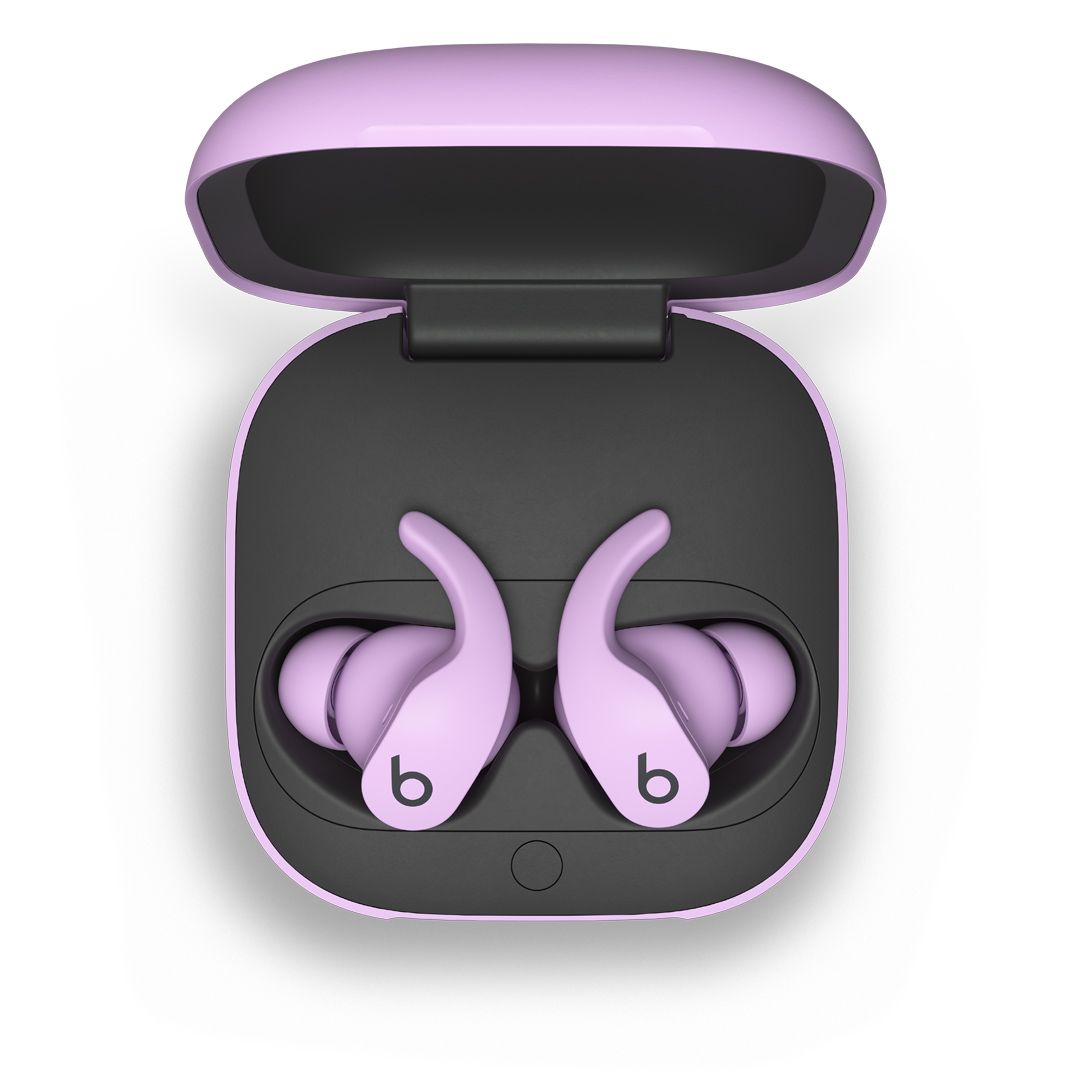
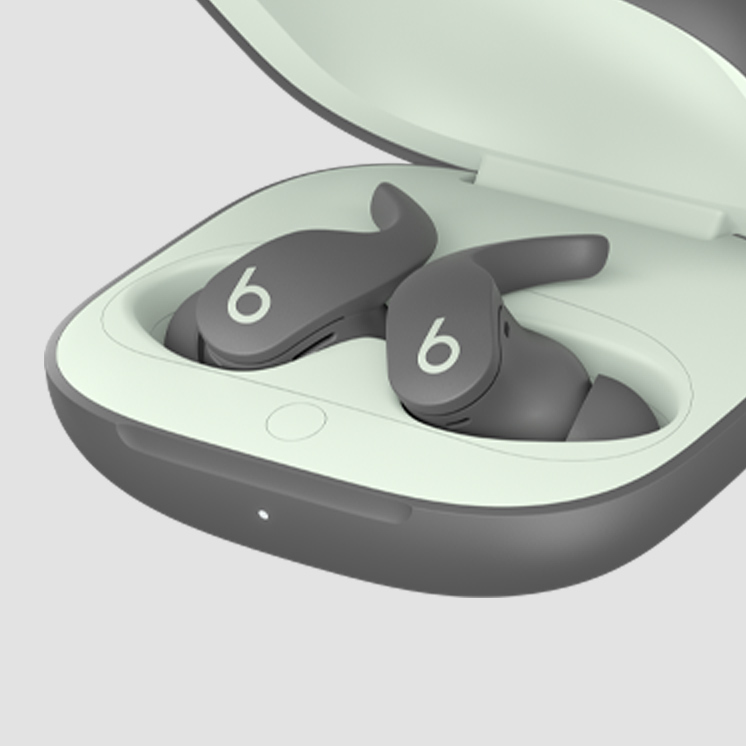
To pair to additional devices, with the earbuds in the case and the lid open, press the button inside the case until the LED begins to blink white. Beats Fit Pro are now in pairing mode and can be paired to any standard Bluetooth® device.
To pair to additional devices, with the earbuds in the case and the lid open, press the button inside the case until the LED begins to blink white. Beats Fit Pro are now in pairing mode and can be paired to any standard Bluetooth® device.
To pair to additional devices, with the earbuds in the case and the lid open, press the button inside the case until the LED begins to blink white. Beats Fit Pro are now in pairing mode and can be paired to any standard Bluetooth® device.
Press and hold the ‘b’ button down to toggle between Active Noise Cancelling (ANC) and Transparency mode. You can also control listening modes, including Adaptive EQ (with ANC and Transparency off), and customise button setup within iOS or the Beats app for Android.
Press and hold the ‘b’ button down to toggle between Active Noise Cancelling (ANC) and Transparency mode. You can also control listening modes, including Adaptive EQ (with ANC and Transparency off), and customise button setup within iOS or the Beats app for Android.
Press and hold the ‘b’ button down to toggle between Active Noise Cancelling (ANC) and Transparency mode. You can also control listening modes, including Adaptive EQ (with ANC and Transparency off), and customise button setup within iOS or the Beats app for Android.
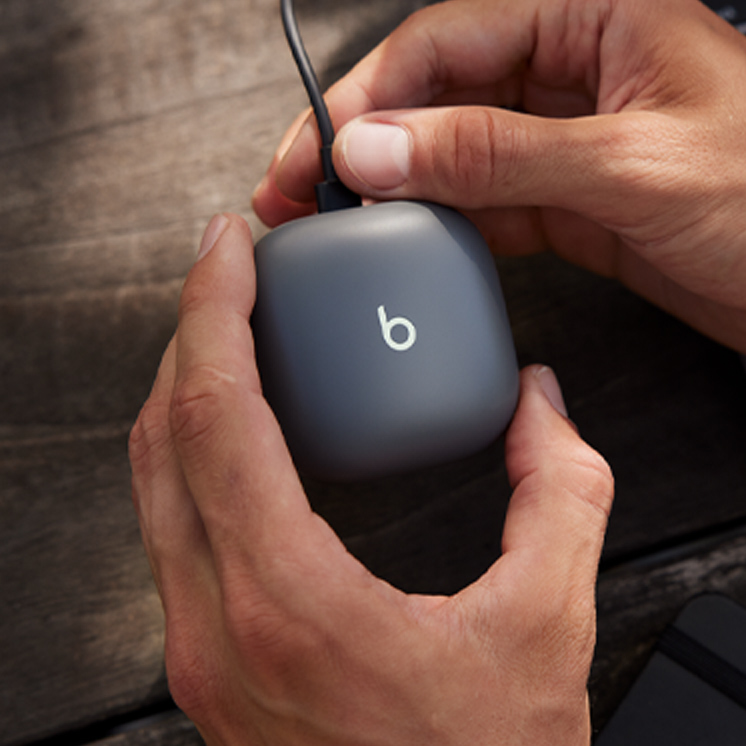
To charge your Beats Fit Pro, place them in the charging case. When you need to charge both the earbuds and the case, place the earbuds in the case and connect the case to a power source with the USB-C cable that's included with your Beats Fit Pro. You can also charge the case without the earbuds. (Note: USB-C power adapter sold separately).
To charge your Beats Fit Pro, place them in the charging case. When you need to charge both the earbuds and the case, place the earbuds in the case and connect the case to a power source with the USB-C cable that's included with your Beats Fit Pro. You can also charge the case without the earbuds. (Note: USB-C power adapter sold separately).
To charge your Beats Fit Pro, place them in the charging case. When you need to charge both the earbuds and the case, place the earbuds in the case and connect the case to a power source with the USB-C cable that's included with your Beats Fit Pro. You can also charge the case without the earbuds. (Note: USB-C power adapter sold separately).
Beats Fit Pro automatically power on when they are removed from the case and power off when placed back in the case with the lid closed.
Beats Fit Pro automatically power on when they are removed from the case and power off when placed back in the case with the lid closed.
Beats Fit Pro automatically power on when they are removed from the case and power off when placed back in the case with the lid closed.
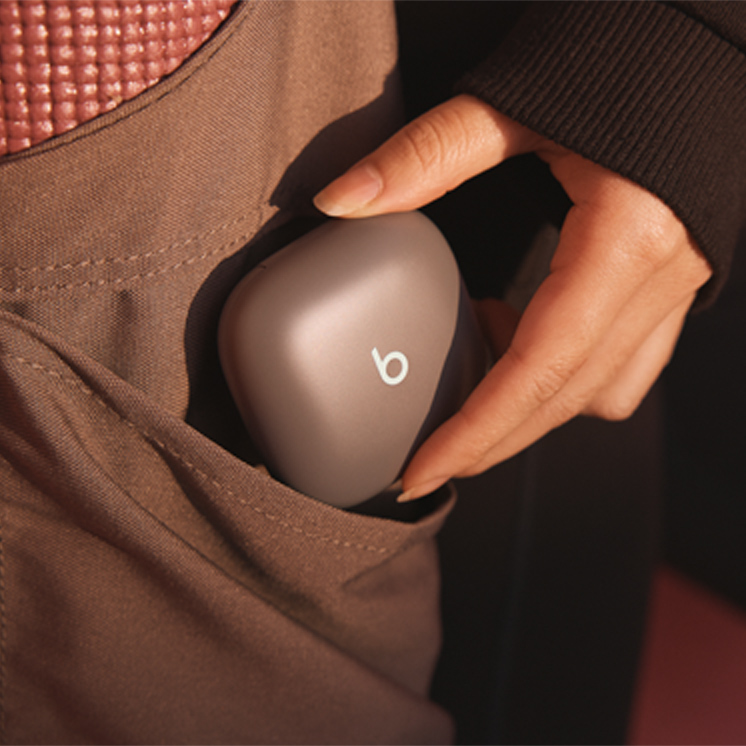
The earbuds have up to 6 hours of listening time with 18 additional hours provided by their pocket-sized charging case. That means that Beats Fit Pro give you up to 24 hours of combined playback.
The earbuds have up to 6 hours of listening time with 18 additional hours provided by their pocket-sized charging case. That means that Beats Fit Pro give you up to 24 hours of combined playback.
The earbuds have up to 6 hours of listening time with 18 additional hours provided by their pocket-sized charging case. That means that Beats Fit Pro give you up to 24 hours of combined playback.
You can configure the press and hold function of the ‘b’ button to either toggle ANC modes or activate voice assistant on one or both of your earbuds. Alternatively, you can customise the ‘b’ button to manage volume controls with volume down on the left earbud and volume up on the right earbud. To do this in iOS, tap on the product icon in Control Centre and select the “Press and hold” menu to choose your preferred function for each earbud. To do this on Android, download the Beats app from Google Play or directly from beatsbydre.com. Once your product has been paired in the app, select the “Press and hold” menu in the product page to choose your preferred function for each earbud.
You can configure the press and hold function of the ‘b’ button to either toggle ANC modes or activate voice assistant on one or both of your earbuds. Alternatively, you can customise the ‘b’ button to manage volume controls with volume down on the left earbud and volume up on the right earbud. To do this in iOS, tap on the product icon in Control Centre and select the “Press and hold” menu to choose your preferred function for each earbud. To do this on Android, download the Beats app from Google Play or directly from beatsbydre.com. Once your product has been paired in the app, select the “Press and hold” menu in the product page to choose your preferred function for each earbud.
You can configure the press and hold function of the ‘b’ button to either toggle ANC modes or activate voice assistant on one or both of your earbuds. Alternatively, you can customise the ‘b’ button to manage volume controls with volume down on the left earbud and volume up on the right earbud. To do this in iOS, tap on the product icon in Control Centre and select the “Press and hold” menu to choose your preferred function for each earbud. To do this on Android, download the Beats app from Google Play or directly from beatsbydre.com. Once your product has been paired in the app, select the “Press and hold” menu in the product page to choose your preferred function for each earbud.
Beats Fit Pro feature a multi-function ‘b’ button on each earbud. Press once to play or pause, twice to skip forwards or three times to skip backwards. With optical sensors on each earbud, Beats Fit Pro will automatically play and pause your content when you put them in or remove them from your ears.
Beats Fit Pro feature a multi-function ‘b’ button on each earbud. Press once to play or pause, twice to skip forwards or three times to skip backwards. With optical sensors on each earbud, Beats Fit Pro will automatically play and pause your content when you put them in or remove them from your ears.
Beats Fit Pro feature a multi-function ‘b’ button on each earbud. Press once to play or pause, twice to skip forwards or three times to skip backwards. With optical sensors on each earbud, Beats Fit Pro will automatically play and pause your content when you put them in or remove them from your ears.
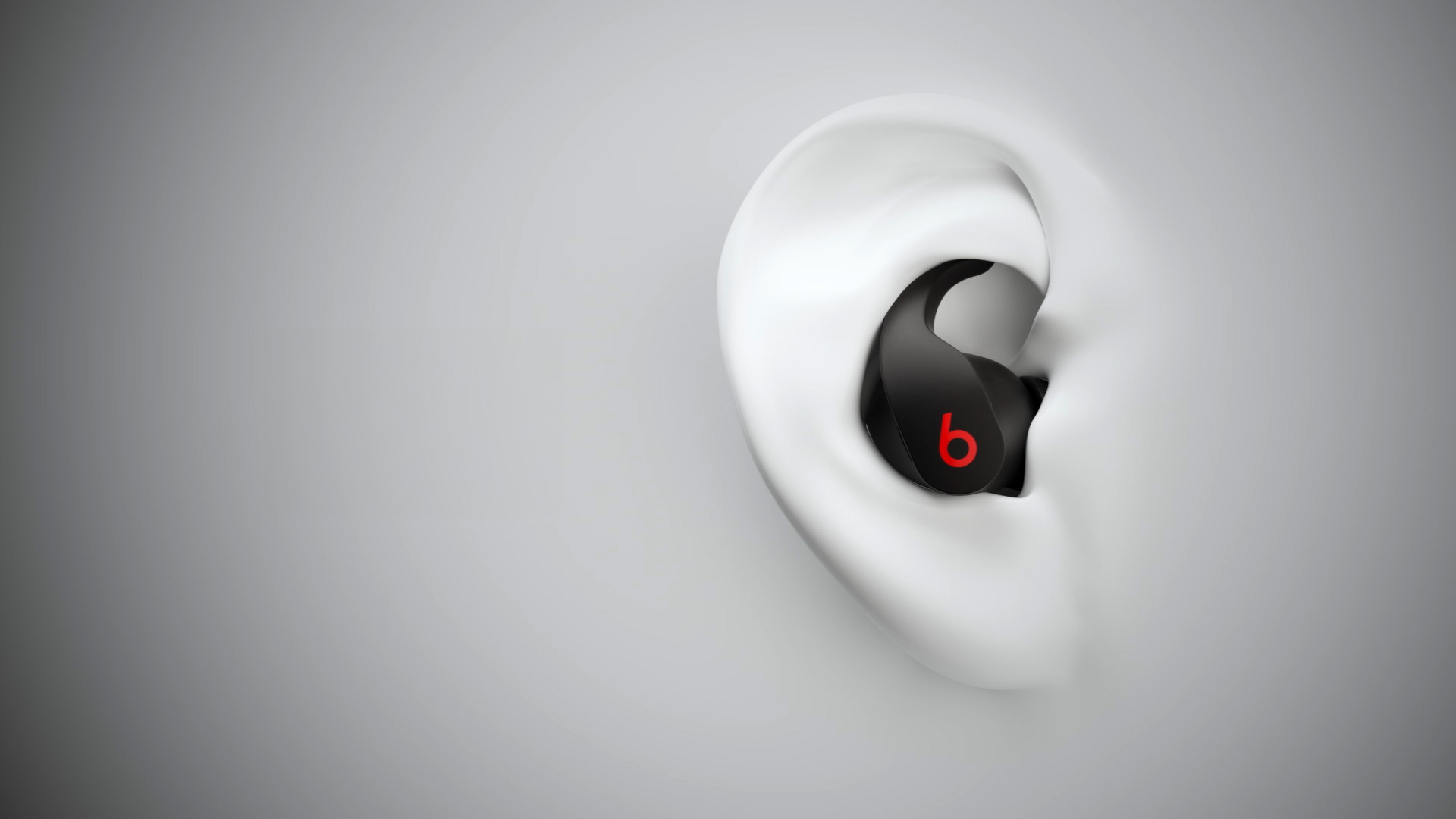
Beats earbuds come with three sets of ear tips — small, medium and large. Medium ear tips come attached to the product. Choose the pair that's most comfortable and provides the best sound experience for you. To select the correct ear tip, first gently insert the earbud, with ear tip affixed, into your ear. You can adjust the fit of the earbud until it feels secure. To remove the earbud from your ear, twist it gently and pull it away from your ear.
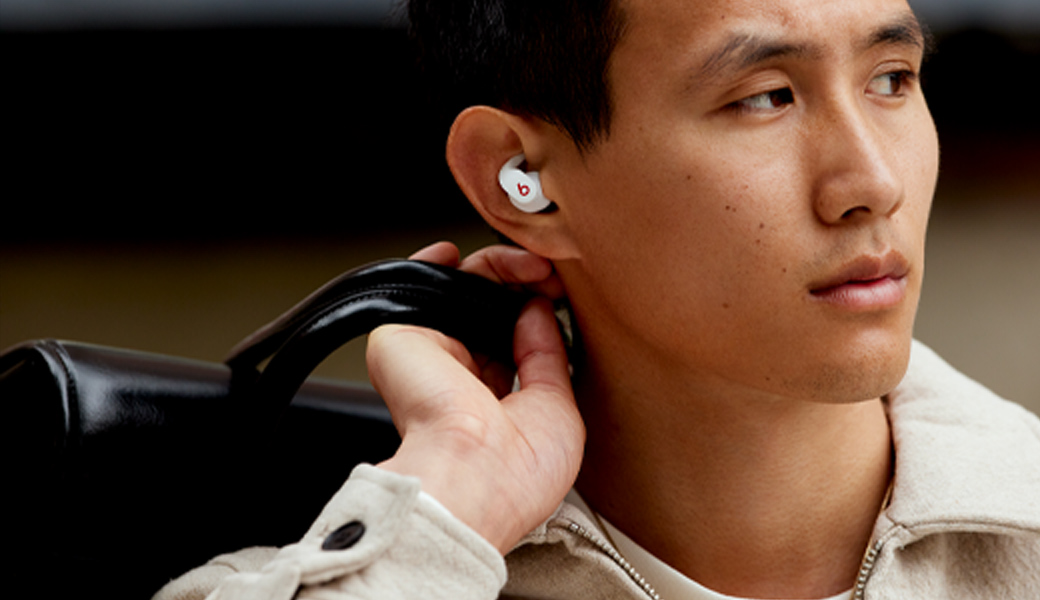
The flexible wing tip is permanently attached to Beats Fit Pro and helps with earbud stability. Use your finger to slightly bend the wing tip and fit it into the upper portion of your ear. The wing tip, combined with the correct ear tip, will provide a comfortable, secure fit which helps optimize sound performance.
Beats earbuds come with three sets of ear tips — small, medium and large. Medium ear tips come attached to the product. Choose the pair that's most comfortable and provides the best sound experience for you. To select the correct ear tip, first gently insert the earbud, with ear tip affixed, into your ear. You can adjust the fit of the earbud until it feels secure. To remove the earbud from your ear, twist it gently and pull it away from your ear.
The flexible wing tip is permanently attached to Beats Fit Pro and helps with earbud stability. Use your finger to slightly bend the wing tip and fit it into the upper portion of your ear. The wing tip, combined with the correct ear tip, will provide a comfortable, secure fit which helps optimize sound performance.
Beats earbuds come with three sets of ear tips — small, medium and large. Medium ear tips come attached to the product. Choose the pair that's most comfortable and provides the best sound experience for you. To select the correct ear tip, first gently insert the earbud, with ear tip affixed, into your ear. You can adjust the fit of the earbud until it feels secure. To remove the earbud from your ear, twist it gently and pull it away from your ear.
The flexible wing tip is permanently attached to Beats Fit Pro and helps with earbud stability. Use your finger to slightly bend the wing tip and fit it into the upper portion of your ear. The wing tip, combined with the correct ear tip, will provide a comfortable, secure fit which helps optimize sound performance.
Each Beats Fit Pro earbud has three total microphones, enabling high-quality call performance as well as ANC and Transparency performance. During phone calls, all three microphones are active to optimize conversations when using one earbud, and five microphones are active when using both earbuds.
Each Beats Fit Pro earbud has three total microphones, enabling high-quality call performance as well as ANC and Transparency performance. During phone calls, all three microphones are active to optimize conversations when using one earbud, and five microphones are active when using both earbuds.
Each Beats Fit Pro earbud has three total microphones, enabling high-quality call performance as well as ANC and Transparency performance. During phone calls, all three microphones are active to optimize conversations when using one earbud, and five microphones are active when using both earbuds.
On Apple devices, you can activate Siri hands-free just by saying “Hey Siri”. Or change the function of the ‘b’ button to activate your voice assistant within your iOS settings. On Android, download the Beats app to change the press and hold function of the ‘b’ button to activate the default voice assistant on your device. Voice assistant access via the ‘b’ button can be customized on one or both of your earbuds.
On Apple devices, you can activate Siri hands-free just by saying “Hey Siri”. Or change the function of the ‘b’ button to activate your voice assistant within your iOS settings. On Android, download the Beats app to change the press and hold function of the ‘b’ button to activate the default voice assistant on your device. Voice assistant access via the ‘b’ button can be customized on one or both of your earbuds.
On Apple devices, you can activate Siri hands-free just by saying “Hey Siri”. Or change the function of the ‘b’ button to activate your voice assistant within your iOS settings. On Android, download the Beats app to change the press and hold function of the ‘b’ button to activate the default voice assistant on your device. Voice assistant access via the ‘b’ button can be customized on one or both of your earbuds.
Yes, you can use either earbud independently.
Yes, you can use either earbud independently.
Yes, you can use either earbud independently.
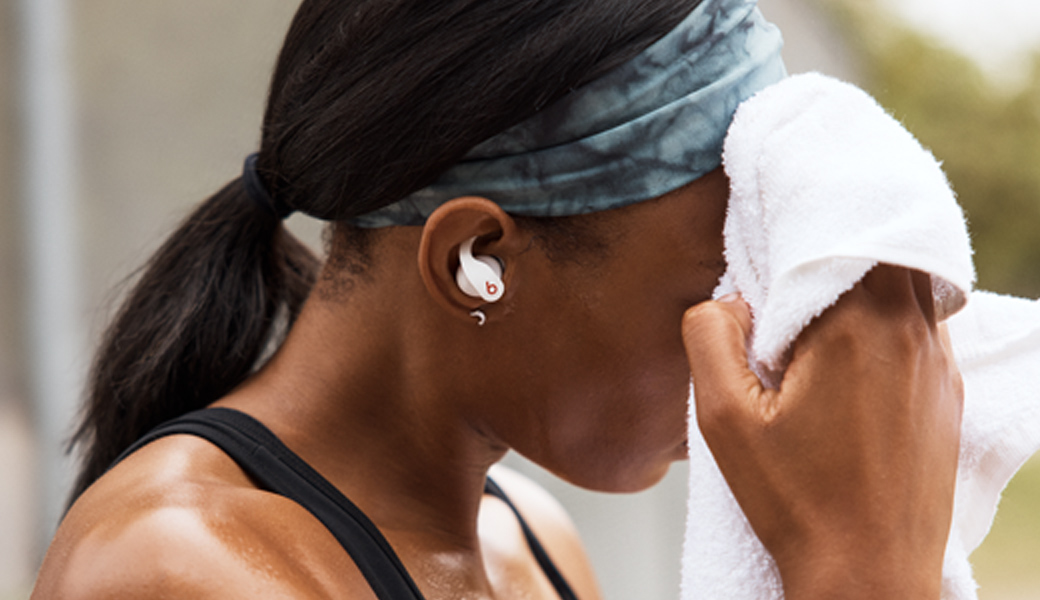
Beats Fit Pro are rated IPX4, which means they are resistant to sweat and water splashing from any direction. The case is not sweat or water resistant.
Beats Fit Pro are rated IPX4, which means they are resistant to sweat and water splashing from any direction. The case is not sweat or water resistant.
Beats Fit Pro are rated IPX4, which means they are resistant to sweat and water splashing from any direction. The case is not sweat or water resistant.
Spatial audio with dynamic head tracking provides an immersive, cinematic experience for compatible content, including Dolby Atmos. Beats Fit Pro leverages gyroscopes and accelerometers in the earbuds and your iPhone or iPad, then tracks the movement of your head and your device so sound stays anchored to your device, regardless of how your head moves, creating a dynamic, multi-dimensional experience.
Beats Fit Pro also automatically play spatial audio content available in Apple Music, which also works with Android.
Spatial audio with dynamic head tracking provides an immersive, cinematic experience for compatible content, including Dolby Atmos. Beats Fit Pro leverages gyroscopes and accelerometers in the earbuds and your iPhone or iPad, then tracks the movement of your head and your device so sound stays anchored to your device, regardless of how your head moves, creating a dynamic, multi-dimensional experience.
Beats Fit Pro also automatically play spatial audio content available in Apple Music, which also works with Android.
Spatial audio with dynamic head tracking provides an immersive, cinematic experience for compatible content, including Dolby Atmos. Beats Fit Pro leverages gyroscopes and accelerometers in the earbuds and your iPhone or iPad, then tracks the movement of your head and your device so sound stays anchored to your device, regardless of how your head moves, creating a dynamic, multi-dimensional experience.
Beats Fit Pro also automatically play spatial audio content available in Apple Music, which also works with Android.
Spatial audio with dynamic head tracking requires iPhone or iPad and works with compatible content in supported apps. Spatial audio is also compatible with Apple TV 4K with the latest version of tvOS.
Spatial audio with dynamic head tracking requires iPhone or iPad and works with compatible content in supported apps. Spatial audio is also compatible with Apple TV 4K with the latest version of tvOS.
Spatial audio with dynamic head tracking requires iPhone or iPad and works with compatible content in supported apps. Spatial audio is also compatible with Apple TV 4K with the latest version of tvOS.
Firmware updates will occasionally be made available to enable new features or improve the product experience. These updates are delivered automatically as you use your Beats Fit Pro when connected to an Apple device connected to Wi-Fi and running the latest operating system software. To stay up to date on an Android device, download the Beats app.
Firmware updates will occasionally be made available to enable new features or improve the product experience. These updates are delivered automatically as you use your Beats Fit Pro when connected to an Apple device connected to Wi-Fi and running the latest operating system software. To stay up to date on an Android device, download the Beats app.
Firmware updates will occasionally be made available to enable new features or improve the product experience. These updates are delivered automatically as you use your Beats Fit Pro when connected to an Apple device connected to Wi-Fi and running the latest operating system software. To stay up to date on an Android device, download the Beats app.
You can use Find My on your iPhone, iPad, Mac, or Apple Watch to see your Beats last connected location on a map. You can also find your Beats on the web at iCloud.com/find.
You can use Find My on your iPhone, iPad, Mac, or Apple Watch to see your Beats last connected location on a map. You can also find your Beats on the web at iCloud.com/find.
You can use Find My on your iPhone, iPad, Mac, or Apple Watch to see your Beats last connected location on a map. You can also find your Beats on the web at iCloud.com/find.